Locations
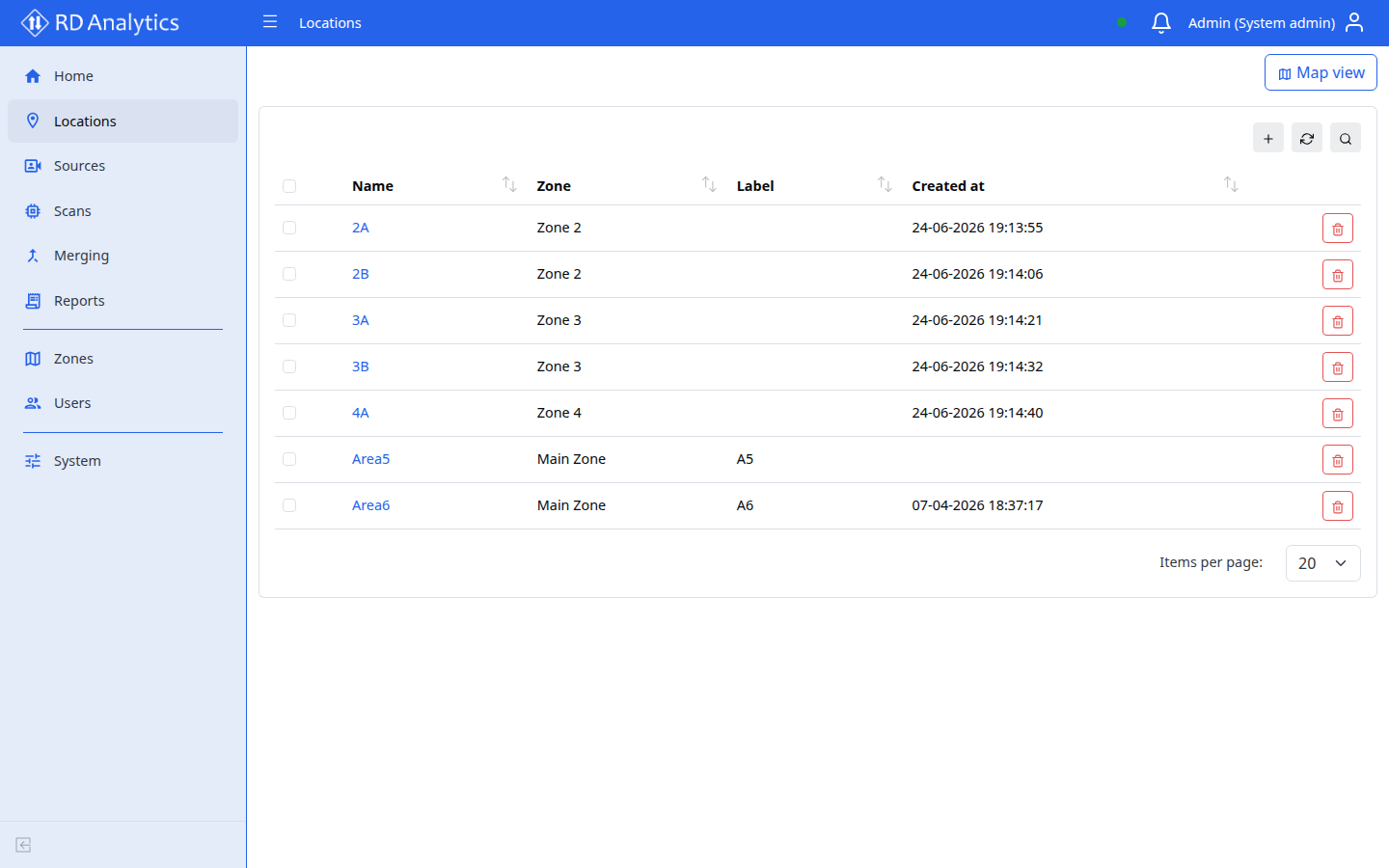
A Location is a physical or logical site — for example a junction, parking area, or facility. Locations group Sources (cameras and video inputs) and appear in filters across the application.
Who uses this
- All roles with Locations access (including Viewer) can browse locations.
- Engineers and admins create and edit locations when setting up the data pipeline.
Before you begin
- At least one Zone should exist if your organization uses zone-based access (admins create zones under Zones).
- Plan a clear naming scheme (for example
Site A — Main junction).
Key concepts
| Term | Meaning |
|---|---|
| Name | Primary identifier shown in lists and filters |
| Zone | Security/organization grouping assigned to the location |
| Label | Optional short tag for display |
| Description | Optional free text |
Create a location
Requires: Engineer or admin (Viewers cannot create locations).
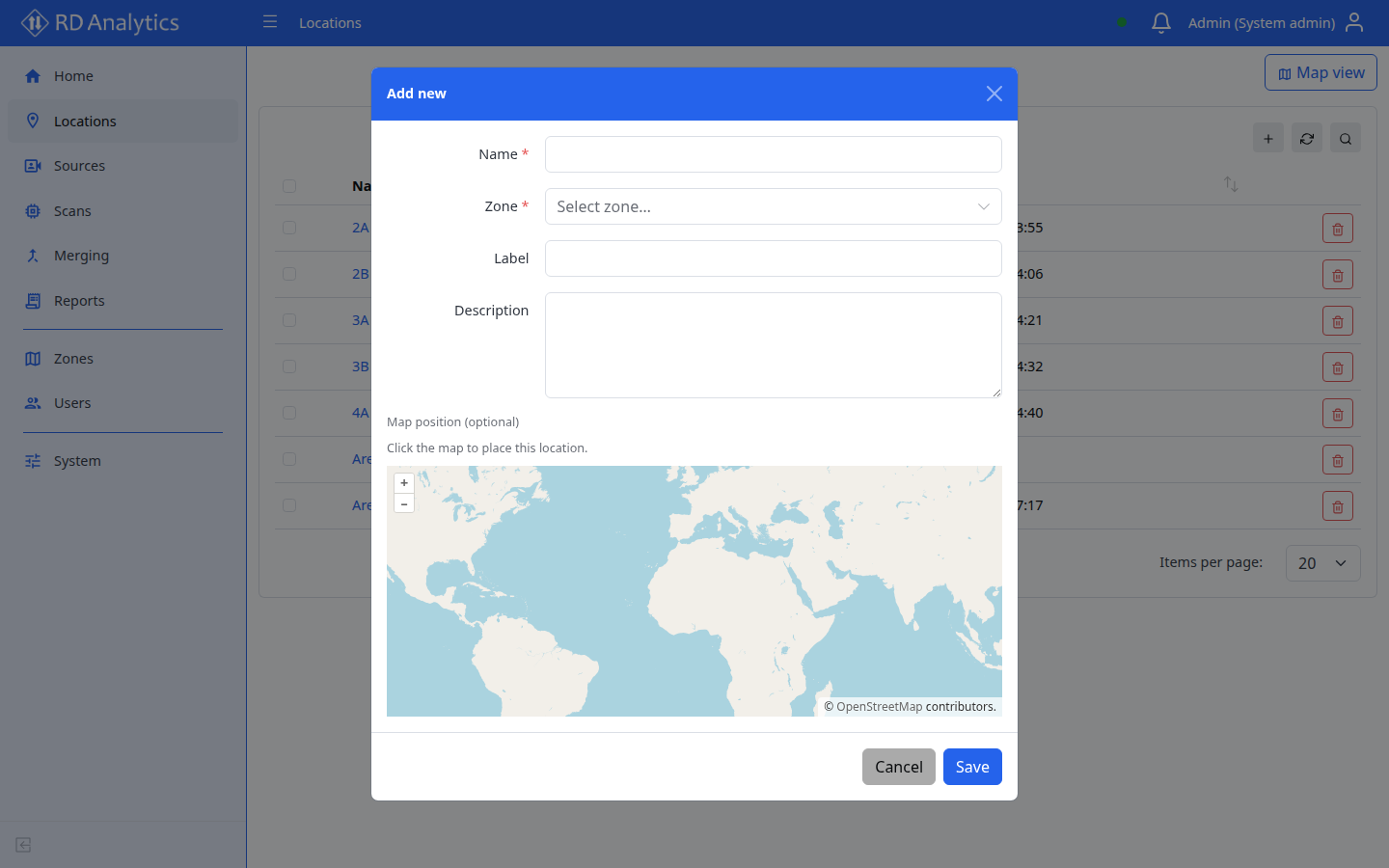
- Open Locations in the sidebar.
- Select Add new.
- Fill in the form:
| Field | Required | Notes |
|---|---|---|
| Name | Yes | Validation: Name is required. |
| Zone | Yes | Autocomplete — Select zone… |
| Label | No | Optional display tag |
| Description | No | Optional notes |
- Select Save.
Edit a location
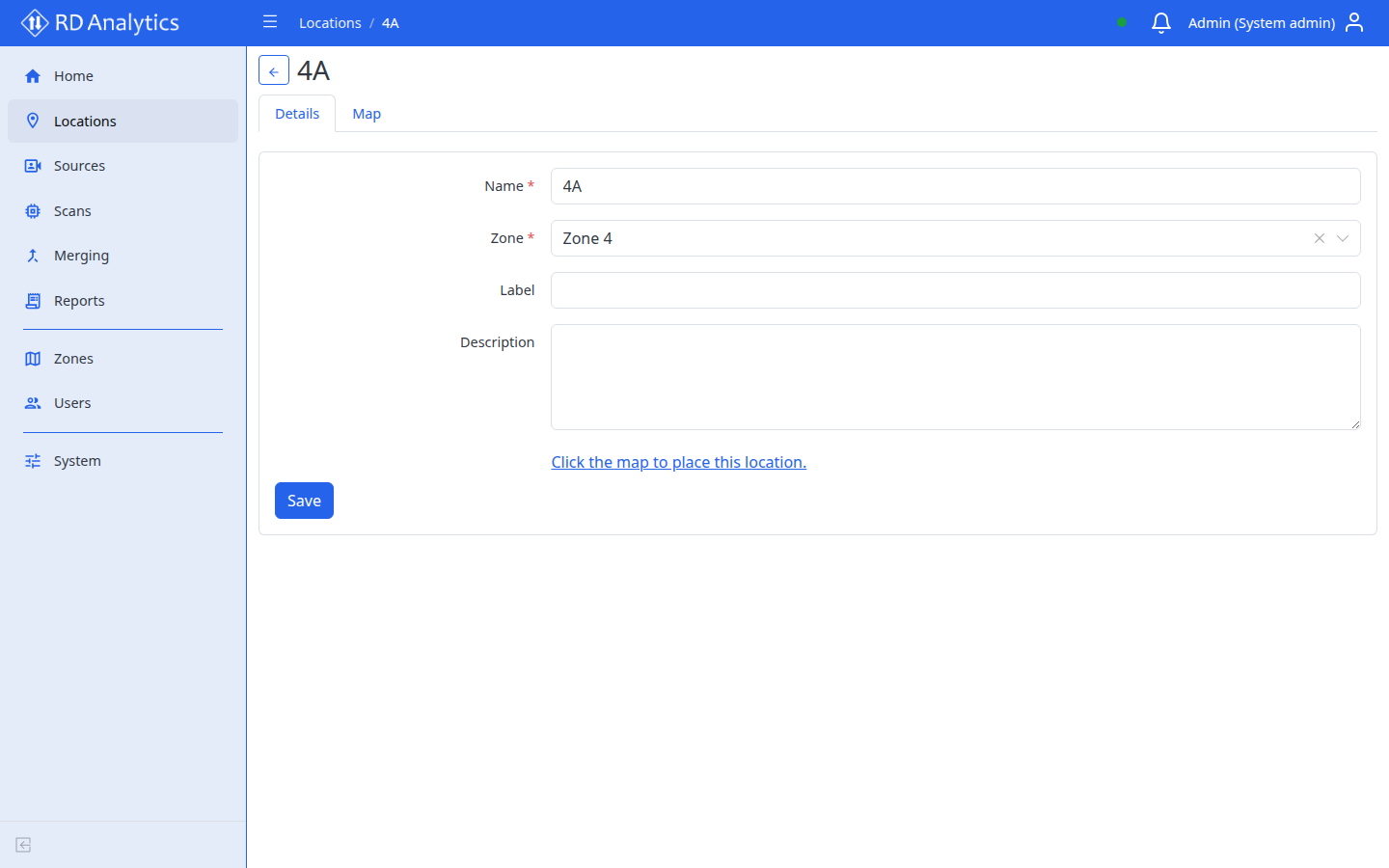
- Open Locations and click the location row (or open from a source’s Location link).
- Update fields on the details page (Name, Zone, Label, Description).
- Select Save. Success toast: Saved successfully.
| Element | Description |
|---|---|
| Back | Returns to the Locations list |
| Heading | Location Name |
| Form | Name, Zone, Label, Description |
| Save | Persists changes (Saving… while in progress) |
There is no tab bar on location details — a single Details view.
| State | Message |
|---|---|
| Loading | Loading location… |
| Not found | Could not load this location. It may have been removed or you may not have access. |
Delete a location
- On the list, select the row checkbox or use the row Delete action.
- Confirm Delete confirmation — Are you sure you want to delete {{itemName}}?
- For multiple rows, use Delete selected.
Warning
Deleting a location may affect sources that reference it. Review linked sources before deleting.
Verify
- The location appears in the Locations list with the correct Zone.
- The location appears in the All locations filter on Sources and Scans lists.
Troubleshooting
| Problem | What to do |
|---|---|
| Please select a zone. | Choose a zone from the autocomplete |
| Zone list empty | Ask an admin to create zones under Zones |
| No matches found. in zone picker | Reload the page; check network connection |
Common tasks
- Locations map — browse all sites on a map