Open and configure a scan
Requires: Engineer or admin; scan in DRAFT for full editing.
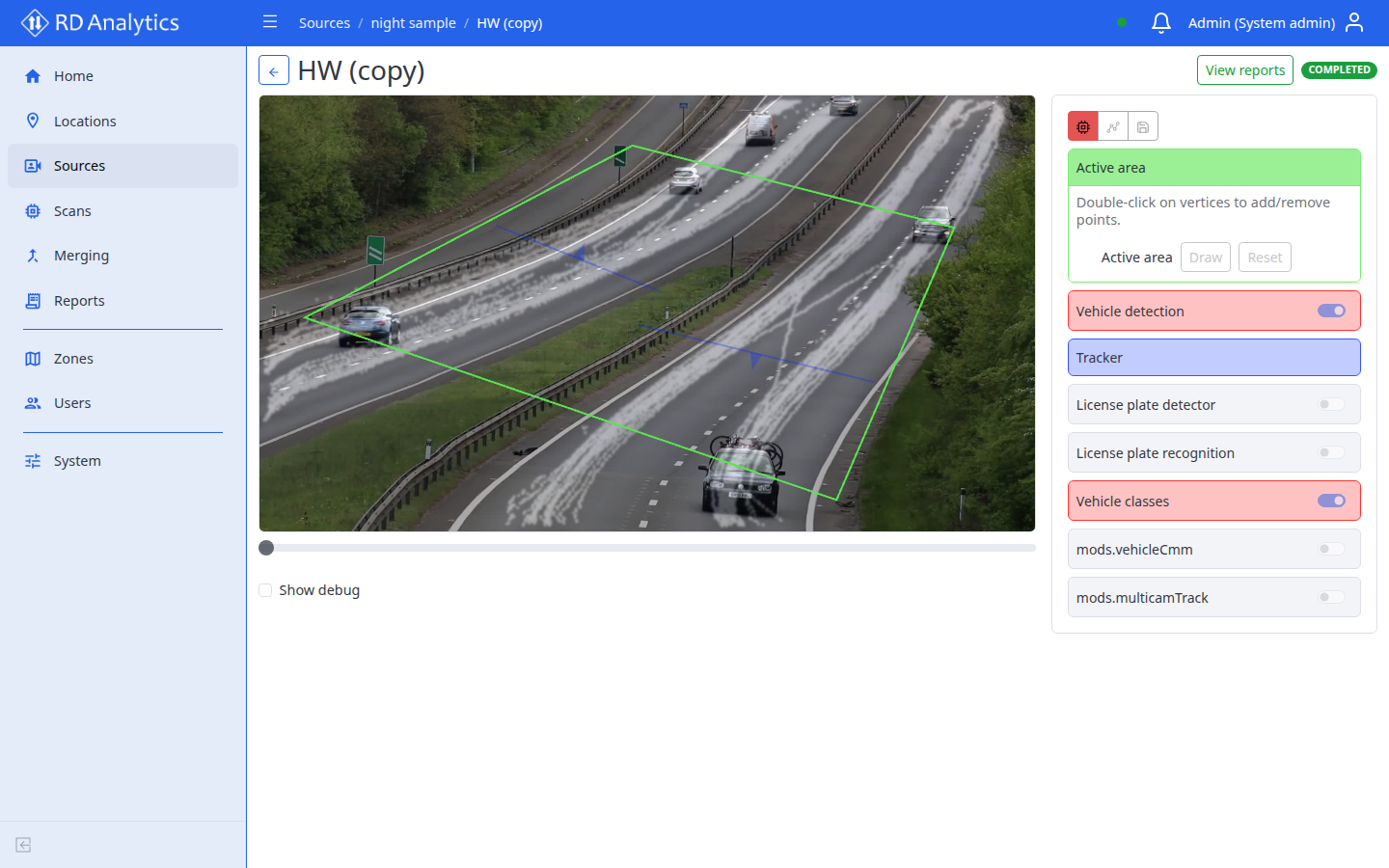
Open the workspace
- Click a scan row on Scans or a source Scans tab.
- Or use Back from breadcrumbs after navigating from a report.
Header actions
| Control | When shown | Action |
|---|---|---|
| Back | Always | Returns to source Scans tab (prompts if unsaved) |
| START PROCESSING | Status PENDING | Queues processing |
| STOP PROCESSING | Status PROCESSING | Stops engine |
| DRAFT / PENDING toggle | Status DRAFT or PENDING | Lifecycle status (Lifecycle status) |
| View reports | Status COMPLETED | Opens Reports |
| Status badge | Other states | Current status |
Page layout
Two columns:
| Area | Contents |
|---|---|
| Left | Video viewport, playback controls, timeline |
| Right | AI processing settings, Draw settings, Output settings, Save |
Editing by status
| Capability | DRAFT | PENDING | PROCESSING | COMPLETED |
|---|---|---|---|---|
| Edit settings / geometry | Yes | No | No | No |
| Save | Yes | No | No | No |
| Video playback | Yes | No | No | No |
| START/STOP | No | Start | Stop | No |
Save configuration
- Adjust settings in the right panel (see AI processing settings).
- Draw geometry on video (see Geometry editor) — for reportable counts, include an Active area and at least one Counting line.
- Review Output settings (SystemDB and optional recording/integrations).
- Select Save when the button is enabled (config changed, DRAFT only).
Leaving with unsaved changes
Modal Unsaved changes: You have unsaved changes. Leave this page? — Cancel or Leave.
Switching to PENDING with unsaved draft: warning Save draft changes before switching to PENDING.