Scans
A Scan is how RD Analytics analyzes video from a Source. It is not the video itself — the source holds the media; the scan defines what to detect, where in the frame (geometry), and what to output. When you run a scan, the engine processes that video and stores results that Reports can display.
One source can have several scans. For example, the same junction video might use one scan for vehicle counting across stop lines and another for pedestrian activity in a sidewalk area — different geometry and modules, same footage.
In the UI, a scan is a single object that you configure (DRAFT), queue and run (PENDING → PROCESSING), then use when COMPLETED. Re-running or cloning creates or updates processing for that analysis setup.
Who uses this
- Engineers and System admins configure and run scans.
- Viewers can browse scans in read-only mode.
Before you begin
- A Source with media in
READYor processable state. - Pipeline modules available on the server (built-ins plus any custom modules).
Key concepts
| Concept | Meaning |
|---|---|
| Source vs scan | The source is the video input. The scan is the analysis job configured on that input. |
| Geometry | Lines, areas, and zones drawn on the video frame that tell modules where to measure. |
| Modules / settings | Detectors, trackers, and other pipeline options for this scan. |
| Outputs | Events and data written when processing finishes — consumed by reports. |
| Multiple scans | Same source, different analysis setups (for example counting vs occupancy). |
Scan statuses
| Status | Meaning |
|---|---|
| DRAFT | Configuration is editable; video preview is available. |
| PENDING | Ready to queue for processing. |
| PROCESSING | The engine is currently running the pipeline. |
| COMPLETED | Results are available for reports. |
Where to manage scans
| Start from | Use this when |
|---|---|
| Scans page | Browse all scans; filter by location, status, or source; run or stop processing |
| A specific source | Create or open scans for one source (Source details → Scans tab) |
| Scan editor | Edit configuration, geometry, or settings for an open scan |
Note
To add a new scan, open a Source → Scans tab. Add new is not available on the global list.
Scans list
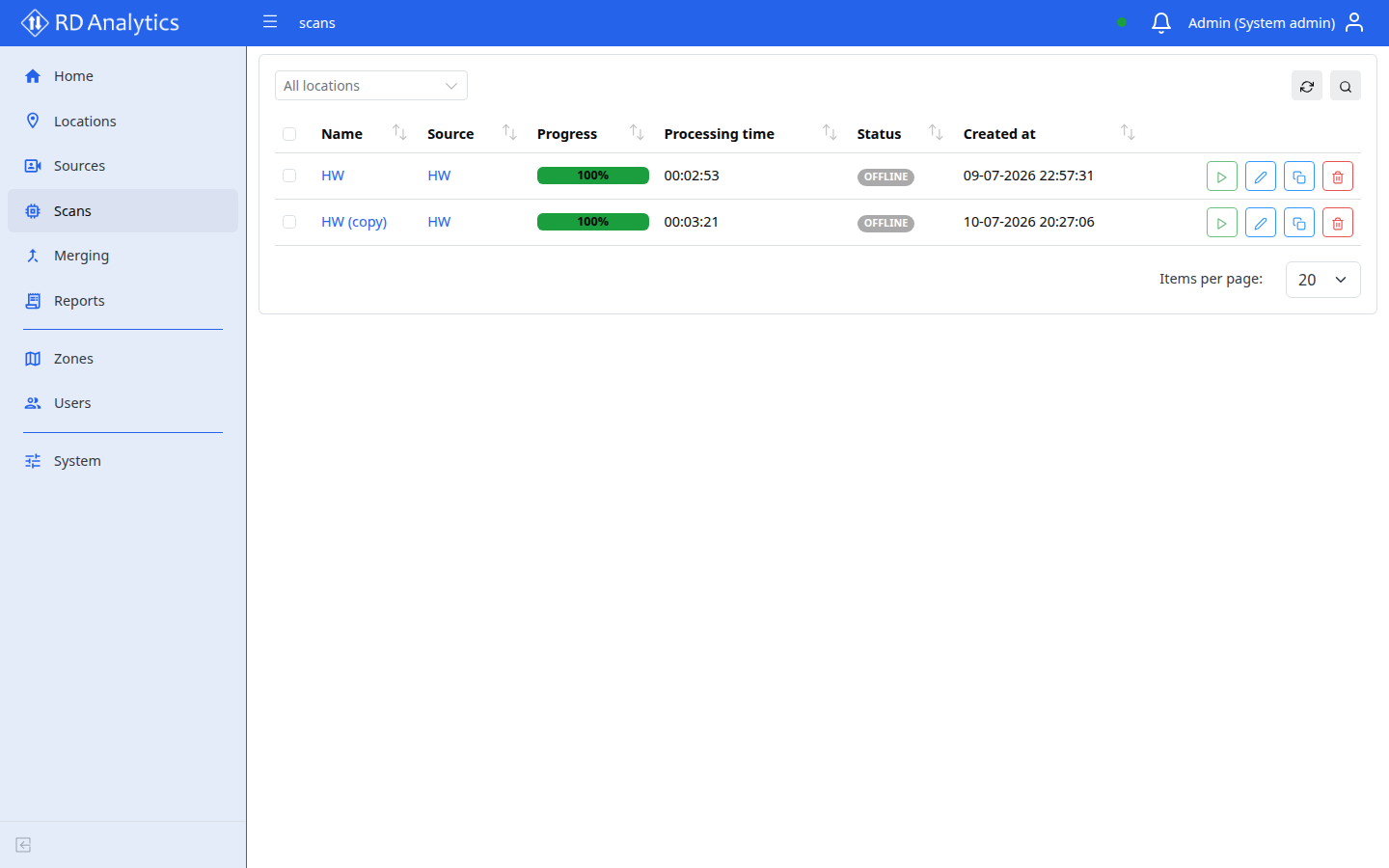
The global Scans page shows all scans across sources.
Table columns
| Column | Description |
|---|---|
| Name | Sortable; click row to open config |
| Source | Link to source details |
| Progress | NN% progress bar while processing |
| Processing time | H:MM:SS elapsed |
| Status | Badge; hover FAILED for error tooltip |
| Created at | Sortable |
| Action | Run/stop, Edit, Clone, Delete |
Default sort: Name ascending. Page size: 20.
Toolbar
| Control | Notes |
|---|---|
| Search | Filter by scan name |
| Reload | Refresh |
| Run selected | Start processing for selected scans in PENDING or FAILED |
| Stop selected | Stop selected scans in QUEUED or PROCESSING |
| Delete selected | Bulk delete |
| Location filter | Autocomplete — All locations |
Per-row Run/stop still works for a single scan. The same bulk actions appear on the source Scans tab.
Common tasks
- Open and configure a scan
- Video, timeline, and preview
- AI processing settings
- Geometry editor
- Output settings
- Run, stop, and statuses
- Source scans tab — create scans