Users
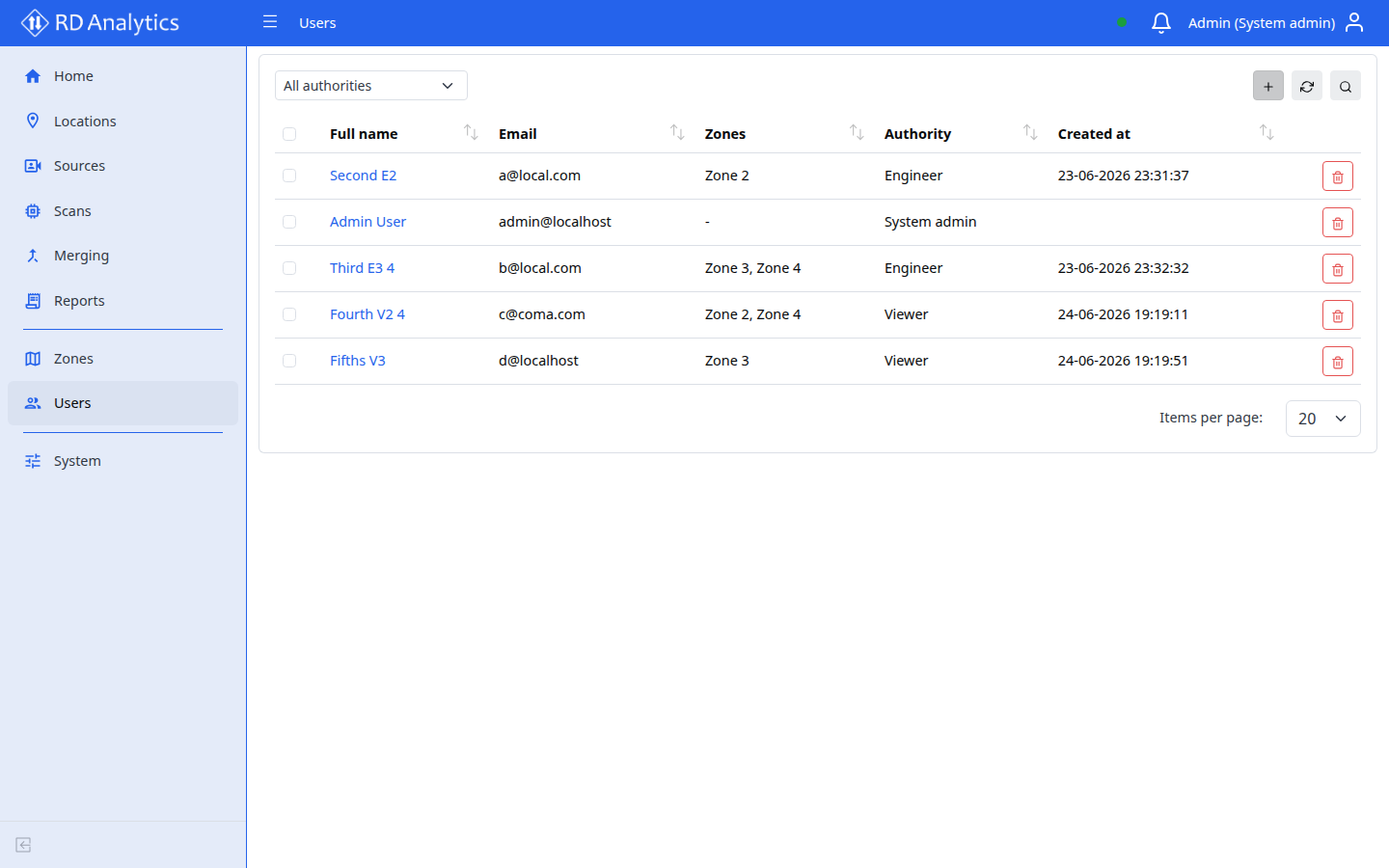
The Users page manages application accounts — login, Authority (role), and Zones assignment.
Who uses this
- System admin only.
Key concepts
| Term | Meaning |
|---|---|
| Authority | Role controlling menu access and whether the user can mutate data |
| Zones | Optional multi-select scope |
| Full name | First + last name in list |
Create a user
Requires: System admin. Creating additional users also requires the license feature multi_user when more than one account already exists — see Licensing.
- Open Users.
- Select Add new.
- Fill the form:
| Field | Required | Notes |
|---|---|---|
| Authority | Yes | Default Viewer; see roles |
| Yes | Used as login; Email is required. | |
| First name | Yes | |
| Last name | No | |
| Zones | No | Multi-select — Select zones… |
| Description | No |
- Select Save.
Assignable authorities: System admin, Engineer, Viewer.
Edit a user
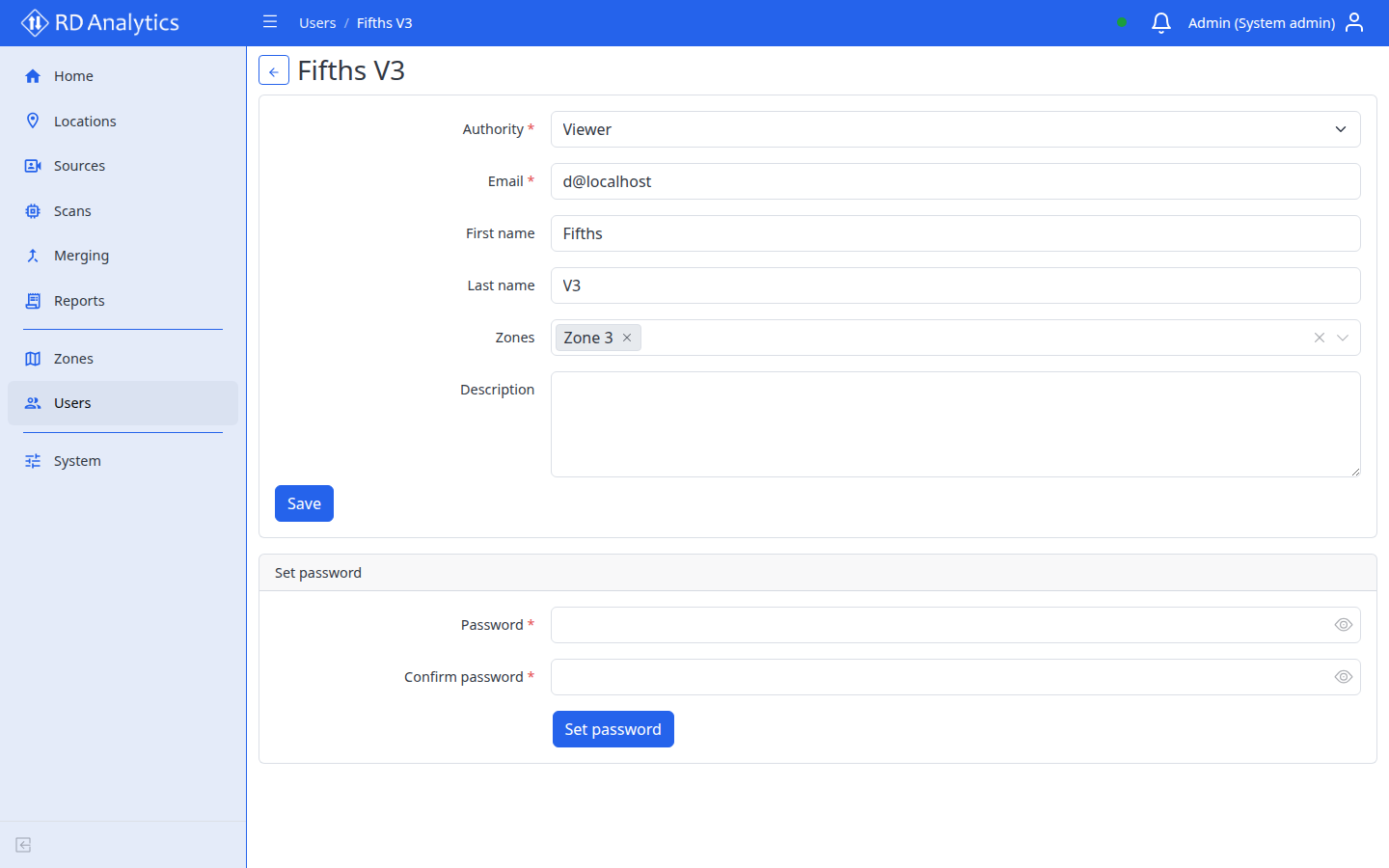
- Click a user row to open the user details page.
- Update fields.
- Save.
Loading: Loading user…
Delete
Row Delete or Delete selected with confirmation.
Filter by authority
List filter dropdown: All authorities or a specific role.
Authority and zones
| Authority | UI label | Effect |
|---|---|---|
VIEWER |
Viewer | Operational pages (Locations → Reports); read-only |
ENGINEER |
Engineer | Same pages; can create, edit, run, and delete |
SYS_ADMIN |
System admin | Full access including Zones, Users, and System |
Set Authority on the user form. Validation: Please select an authority.
Zones multi-select is optional:
- Placeholder: Select zones…
- No matches: No matches found.
- Load error: Could not load zones. Try reloading the page.
Zone assignment scopes which organizational data the user may access.
Best practices
- Give Viewer to read-only staff who need to browse sources, scans, and reports.
- Give Engineer to analysts who configure scans and reports.
- Reserve System admin for administrators.
Related pages
- User roles and access
- User roles and permissions (reference)
- Zones
- Licensing —
multi_usergate for additional accounts