AI-Models
Tab: System → AI-Models.
Requires: System admin.
AI-Models are the neural network cores shipped with the product (for example vehicle detection or classification). They run on the GPU engine. You do not upload models here — you choose which shipped models are loaded and available for scans.
Until a model is ACTIVE, it does not appear in a scan’s AI processing settings module list. Enable the models you need, wait until they become active, then configure scans.
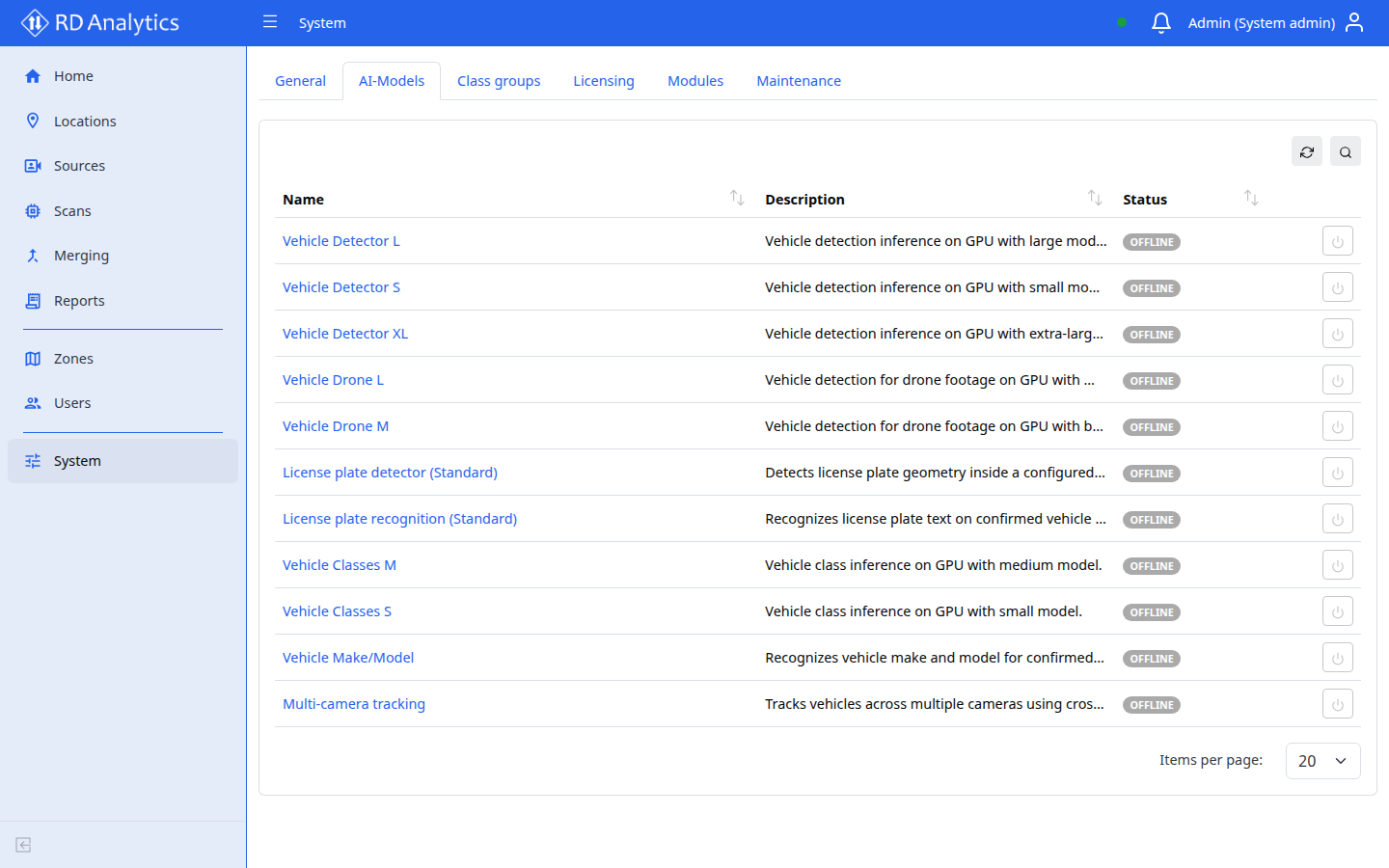
Typical workflow
- Open System → AI-Models.
- Find the model you need and select Enable.
- Watch Status:
- On first use, the engine may show COMPILING while it builds a GPU engine for this machine (can take several minutes).
- Wait until status is ACTIVE.
- Open a scan in DRAFT and check AI processing settings — the model’s detector/processor options should now be available in the slot / Add list.
Important
Do not expect a newly enabled model in scan settings while status is still COMPILING, INACTIVE, or FAILED. Only ACTIVE models are offered for AI processing slots.
Model list
| Column | Description |
|---|---|
| Name | Model identifier |
| Description | Summary text |
| Status | Runtime state (see below) |
| Action | Enable or Disable |
| Status | Meaning |
|---|---|
| INACTIVE | Not loaded — use Enable to load |
| COMPILING | First-time (or rebuild) GPU compile in progress — wait |
| ACTIVE | Loaded and ready — appears in scan AI processing options |
| FAILED | Load/compile failed — check engine/GPU, then Enable again |
| RESTART_REQUIRED | Engine restart needed before the model can finish loading |
| OFFLINE | Engine not connected — status may be unavailable |
| Current status | Action | Effect |
|---|---|---|
| INACTIVE or FAILED | Enable | Start load (and compile if needed) |
| ACTIVE | Disable | Release model from the engine |
| COMPILING / RESTART_REQUIRED / OFFLINE | — | Toggle disabled until the state clears |
Model configuration page
Click a model row to open its details page for metadata and, when supported, a Parameters card.
Parameters
Some models expose system-wide configurable parameters (for example region profiles).
| Action | Effect |
|---|---|
| Edit JSON / fields and Save | Persist overrides for that model |
| Reset (or clear overrides) | Restore manifest defaults |
Saved parameters apply to new scan pipelines after save. Re-run or restart processing if an existing scan must pick up the change.
Info
Models are shipped with the system and can only be loaded or released from the list. The Parameters card is hidden when a model has no configurable fields.
Related pages
- Modules — custom pipeline packages (separate from shipped NN cores)
- AI processing settings — where ACTIVE models appear for a scan
- Notification settings — optional alerts when a model becomes active or fails