Edit layout and add widgets
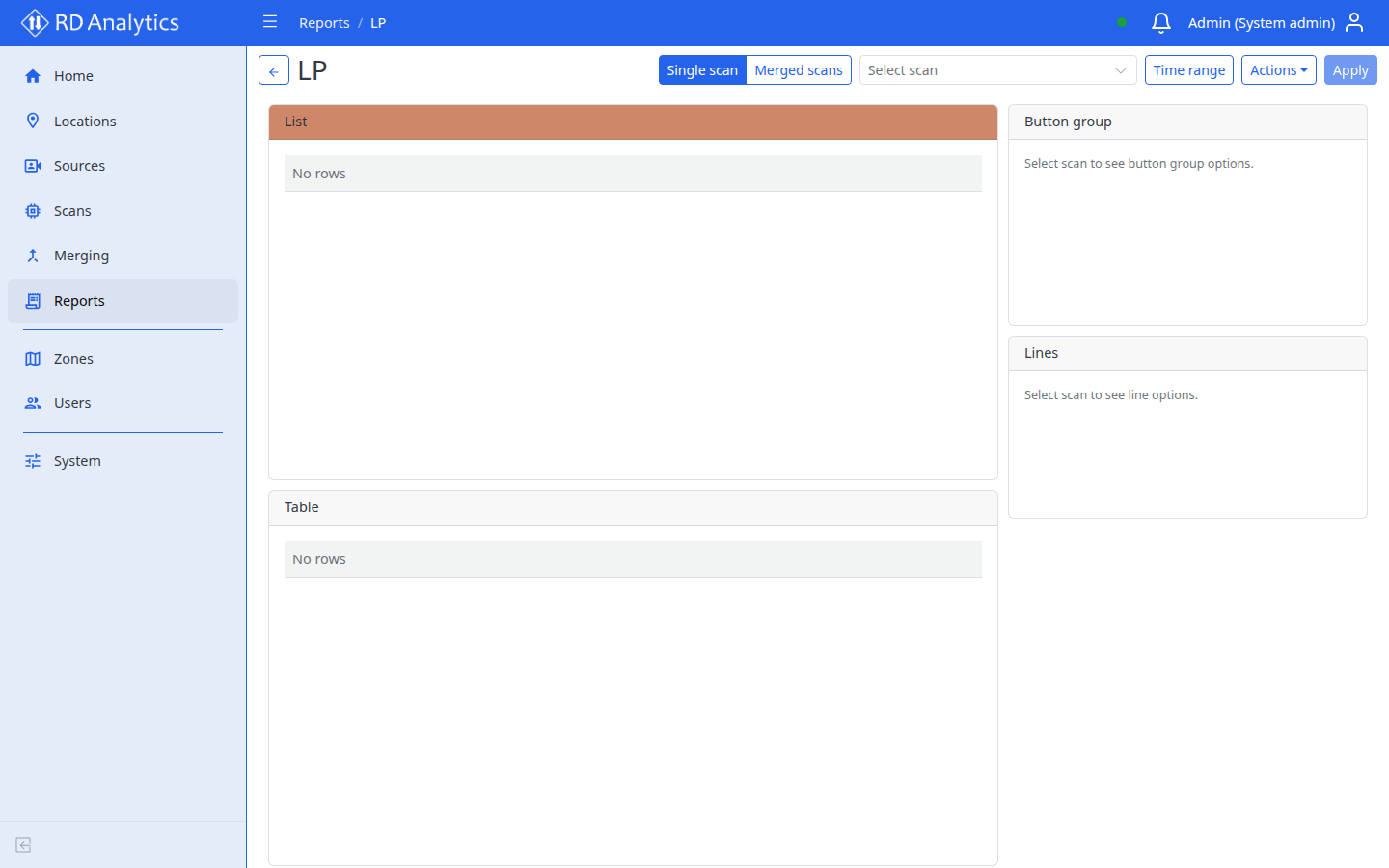
Enter via Actions → Edit on the view page.
Edit mode toolbar
| Control | Action |
|---|---|
| Add widget | Choose type from catalog |
| Cancel | Revert layout and data snapshot |
| Save | Persist layout; toast Saved successfully. |
Some query fields are scan-aware. Lines still need a scan selected; other widgets can often be edited without a scan.
Grid editing
- Drag and resize widgets on a 12-column grid.
- Per widget header: Edit (pencil), Remove (trash) — remove confirms delete.
Add a widget
- Select Add widget.
- Pick a type (for example Table, Line chart, Filters, Total, Class group editor).
- Widget appears on grid — open Edit to configure.
If catalog empty: No widget types available.
Edit widget modal
Title: Edit widget. Cancel / OK.
Type
Read-only — widget kind name (cannot change after add).
Query tab
Dynamic fields from server schema (often scan-aware):
- Booleans, integers, selects, multi-selects, strings, sliders
- Table / Line chart: Data = Counts or Metrics, then either Query (counts) or Metric domain / Statistic / Grouping (metrics), plus Interval (minutes) and (table) Row limit
- Examples: Quantity by line, Quantity by speed, metric domains such as Density, Headway, Queue length
- Full domain/stat matrix: Report widget types
Filters widget query settings: attribute rules with operators eq, neq, contains, in, plus and/or logic. Attribute keys map to track attributes (for example make).
Empty: No query parameters for this widget type.
| Alert | Meaning |
|---|---|
| Select a scan to load widget schema. | Needed for scan-dependent widgets such as Lines |
| Query options load after you save the layout. | Save layout, then re-edit |
Appearance tab
| Field | Applies to |
|---|---|
| Name | All (required) |
| Header bar color | All |
| Striped rows, Table size | Table |
| Dense list | List |
| Show legend, Smooth line, positions | Charts |
| Donut chart | Pie chart |
Save layout
Save writes layouts and widget configs (querySettings and appearance) to the server. It does not persist live toolbar filter state as a separate defaultState blob. Apply on the view page refreshes data using current session state.