Merging
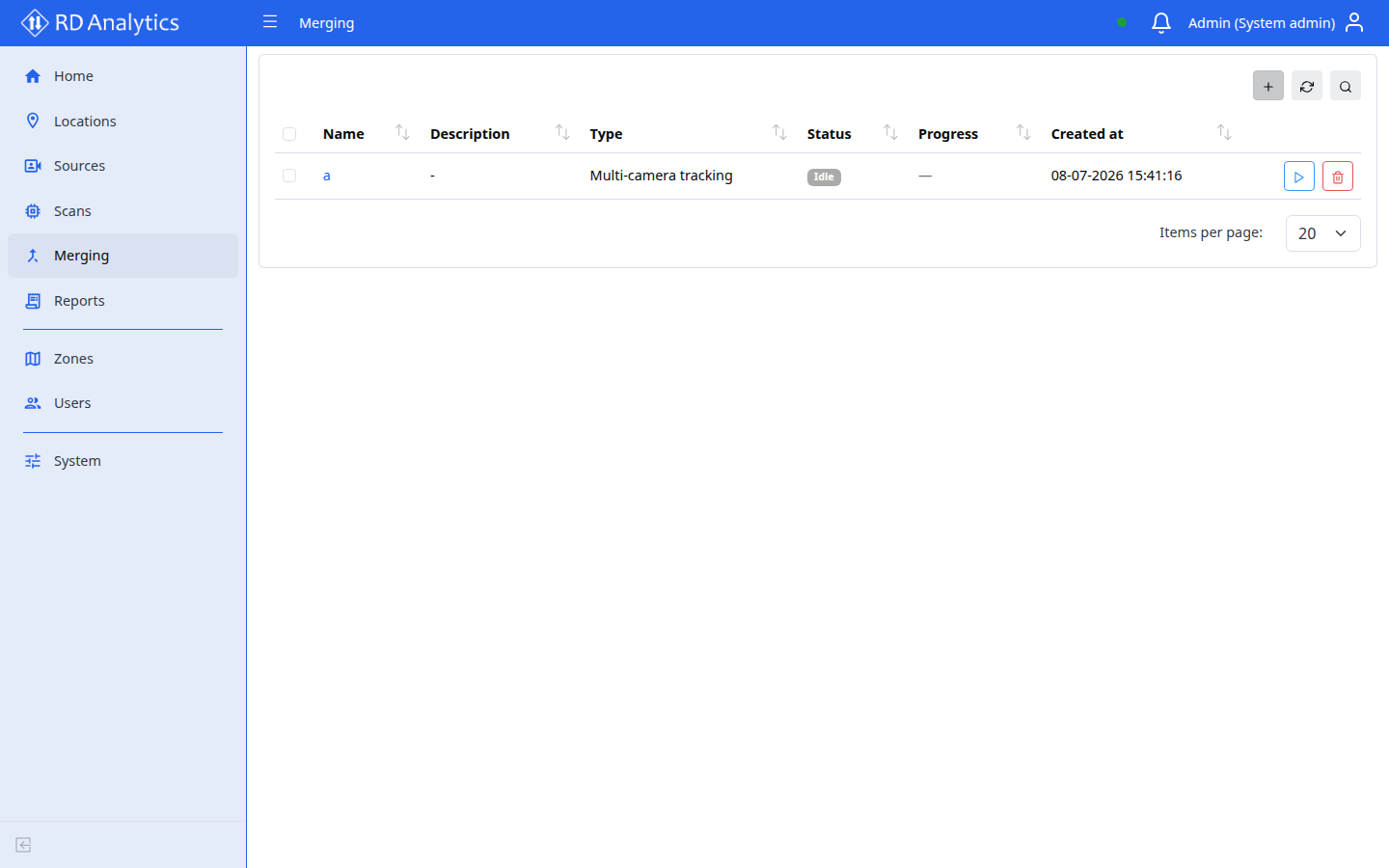
Merging pairs objects across Scans (for example multi-camera journeys or license-plate matches). Completed merges feed Merged scans mode in Reports. Use this only for those multi-scan scenarios — everyday reporting uses a single completed scan.
Who uses this
- Engineers and System admins with Merging access.
- Viewers can open Merging in read-only mode.
Before you begin
- At least two suitable COMPLETED scans (merge type rules apply).
- Required pipeline modules and license features for the merge type (for example multicam track or ANPR).
Key concepts
| Term | Meaning |
|---|---|
| Merge type | Multi-camera tracking or License plate match |
| Merge config | Named definition: type, scans, parameters |
| Status | Idle, Queued, Running, Completed, Failed |
| Merge results | Paired (and related) rows used by report merge mode |
Create a merge
Requires: Engineer or System admin.
- Open Merging in the sidebar.
- Select Add new.
- Configure:
| Field | Required | Notes |
|---|---|---|
| Name | Yes | |
| Description | No | |
| Merge type | Yes | Multi-camera tracking or License plate match |
| Scans | Yes | At least two distinct scans (Select at least two distinct scans.) |
| Parameters | Depends on type | Type-specific options from the form |
- Select Save.
Edit a merge
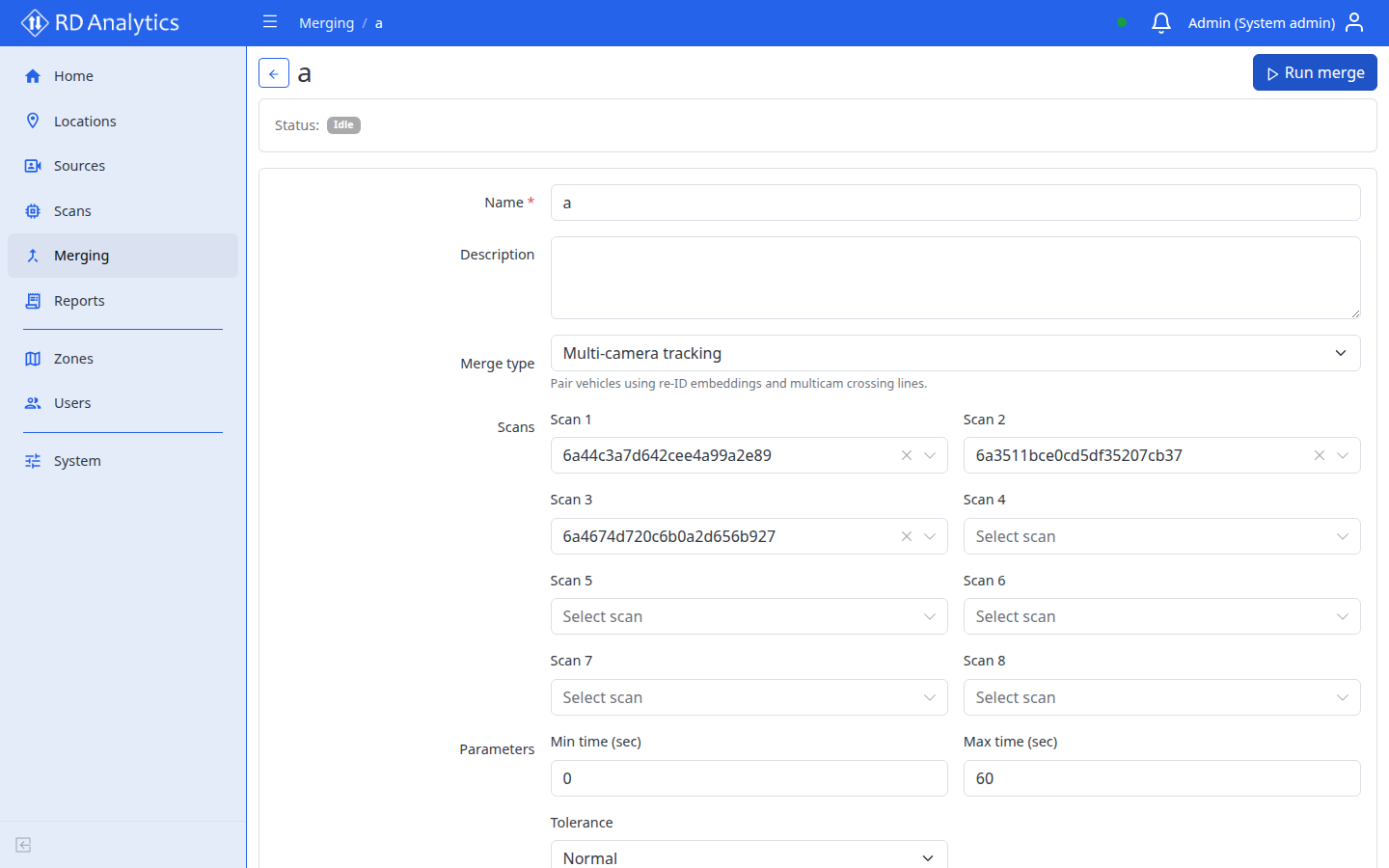
- Click a merge row to open the detail page (Merge config).
- Update name, description, type, scans, or parameters.
- Select Save.
Delete
- Row Delete or Delete selected on the list.
- Confirm Delete confirmation. Deleting a merge also clears its stored merge results.
Run a merge
- Open Merging.
- Select the Merge / run action on the row (or open the detail page and select Run merge).
- Status moves through Queued → Running → Completed or Failed.
While running, the UI may show progress such as processed / paired counts and duration.
Monitor status
| Status | Meaning |
|---|---|
| Idle | Not running |
| Queued | Accepted, waiting |
| Running | Pairing in progress |
| Completed | Results ready for report Merged scans mode |
| Failed | See status details; fix inputs and re-run |
Use Reload on the list to refresh.
After completion
Open a report, switch to Merged scans, select this merger, and Apply. List widgets show paired Track 1 / Track 2 columns when applicable.
Troubleshooting
| Problem | What to do |
|---|---|
| Validation: need two scans | Select at least two distinct completed scans |
| Merge failed | Check status message, required modules/license, and scan completion |
| No pairs in report list | Confirm merger is Completed; unpaired rows may be omitted from the pair list while totals still count all merge results |
| Cannot find merge | Use Search on the list |
Related pages
- Scans
- View a report — Merged scans mode
- Reports