Scan failed and video preview
Use this page when a scan shows FAILED, video preview does not load, or the Scans list shows OFFLINE.
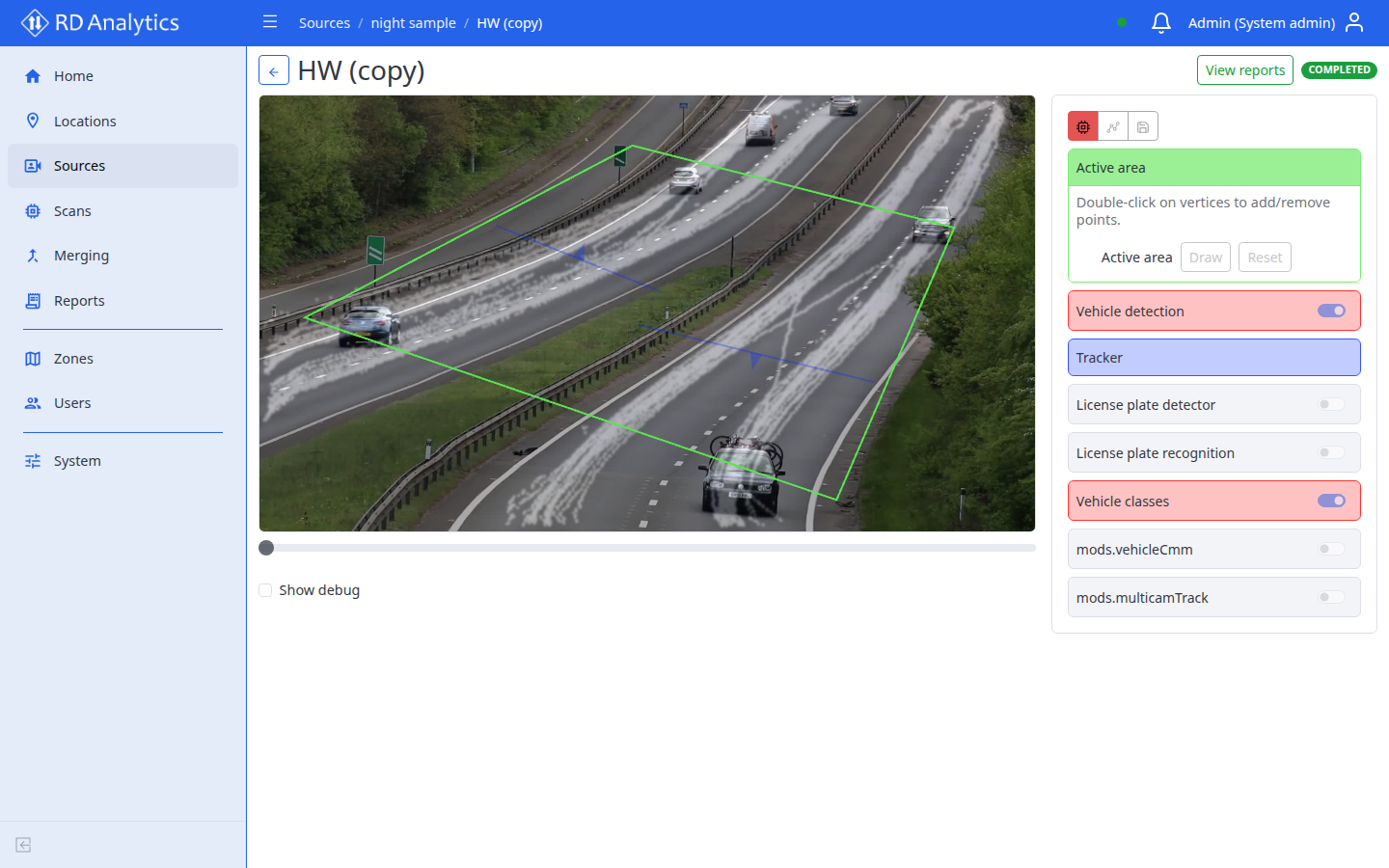
Scan failed (FAILED)
- On the Scans list, hover or expand the status badge for
lastErrorwhen available. - Open the scan configuration workspace and check for a Pipeline error alert near the video player.
- Confirm the source media is present on the source Files tab.
- Confirm required AI-Models are ACTIVE (not COMPILING, INACTIVE, or FAILED).
- Review AI processing settings, geometry, and output settings while the scan is in DRAFT.
- Set status back to PENDING and start processing again.
List shows OFFLINE
OFFLINE on the Scans list means the API cannot reach the GPU engine — it is not the same as FAILED, and it is not something you toggle on the scan.
- Refresh the page after a moment.
- Administrators: confirm services with
systemctl status rd-analytics, or use System → Maintenance to restart the web / engine services. - Confirm hardware / GPU requirements are met.
See Scan statuses for the full status list.
Video preview issues
- Confirm the scan status is expected (preview is typically available in DRAFT; see Scan statuses).
- Save pending configuration changes before starting processing.
- If the player stays blank while models should be ready, check that the engine is up (same checks as for
OFFLINEabove).