Add a source and upload media
Requires: Engineer or System admin; existing Location (recommended).
Steps
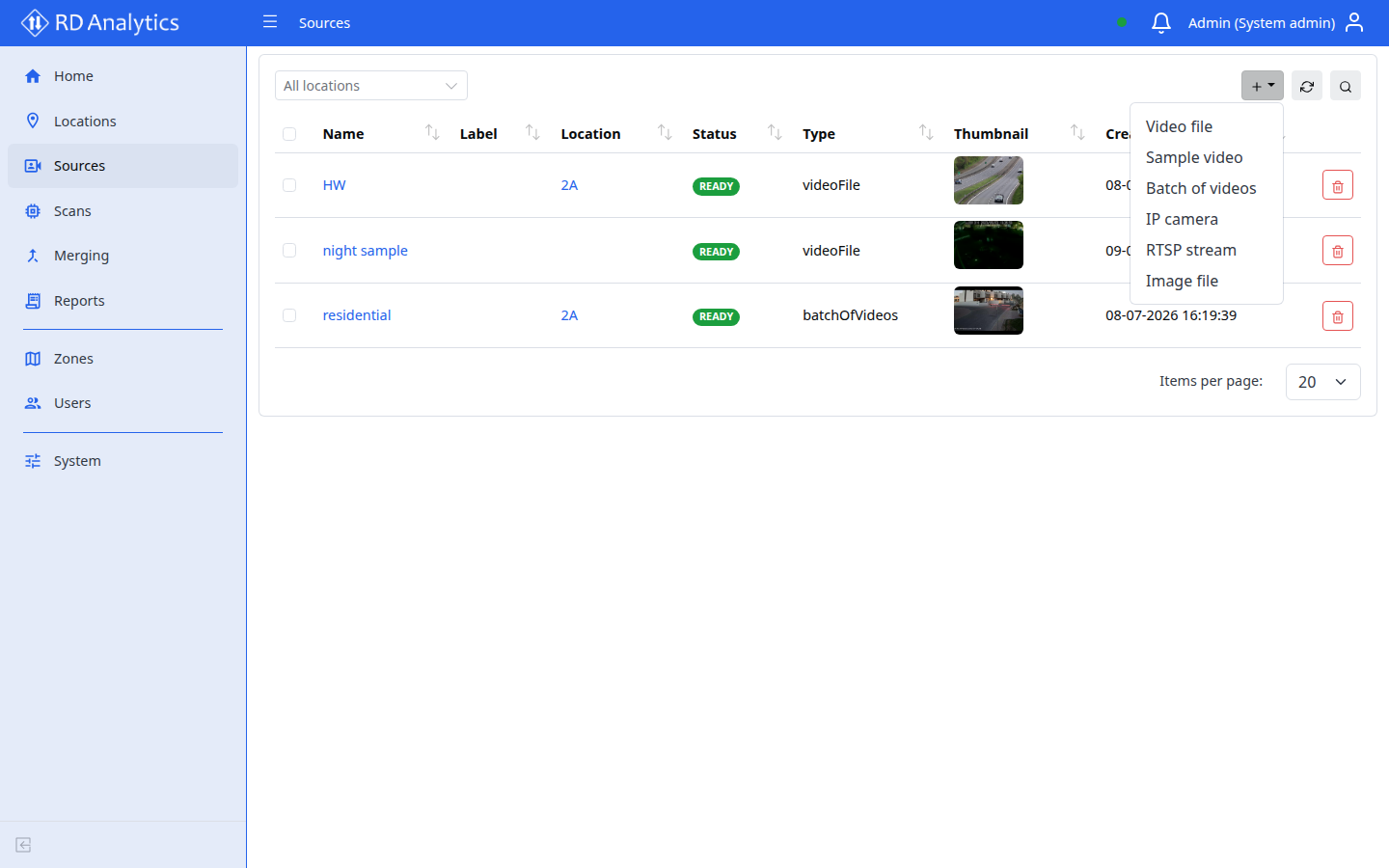
- Open Sources in the sidebar.
- Select Add new — a dropdown lists available source types (from the server).
- Choose a type (for example Video file).
- Fill common fields:
| Field | Required | Notes |
|---|---|---|
| Name | Yes | |
| Location | No | Select location… autocomplete |
| Generate heatmap | No | Skip, Standard, or Drone |
| Label | No | |
| Description | No |
- For upload types (Video file, Batch of videos):
- Use Browse or drag files to Drop file here / Drop files here.
- Single-file types: only one video allowed.
- Batch: multiple files allowed.
- Select Create (upload types) or Save (other types).
Upload progress
For video uploads, a progress panel shows phases such as:
- Creating source
- Uploading
- Finalizing upload
Wait until upload completes before configuring scans.
Verify
- Source appears in the Sources list with expected Type and Location.
- Status moves toward
READYwhen processing finishes. - Files tab shows uploaded media when applicable.
Troubleshooting
| Problem | What to do |
|---|---|
| Select a single video file only. | Choose one file for single-video types |
| Folders are not supported… | Select individual video files |
| Upload stalls | Check disk space and network; use Reload |
| Could not load sources. (location filter) | Reload page; check API connection |