AI processing settings
The right side of the scan configuration page has three panels. Fields are schema-driven — they depend on installed pipeline Modules.
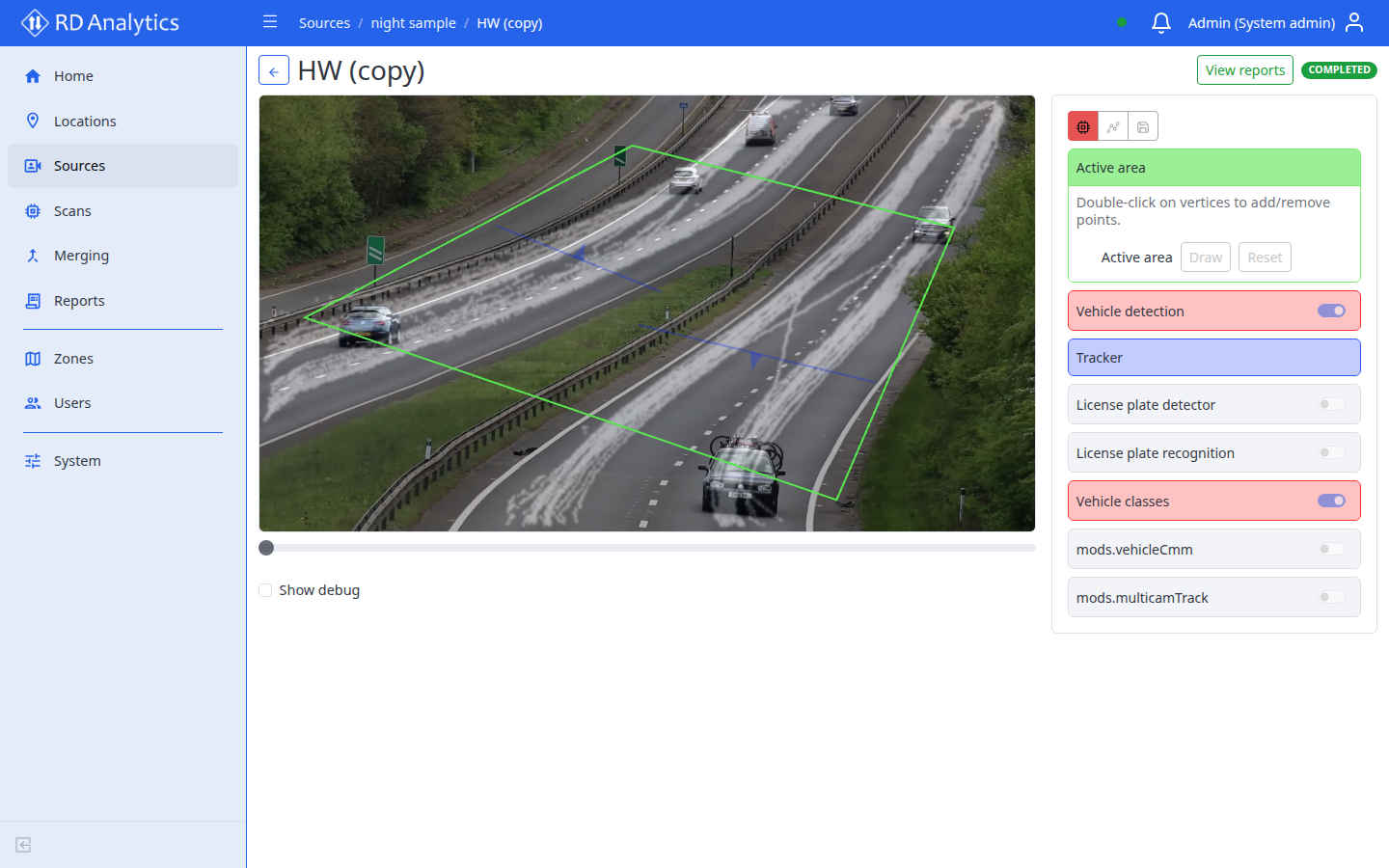
AI processing settings panel
GPU icon — AI processing settings
Expandable slot cards per pipeline module:
| Element | Description |
|---|---|
| Enable switch | Turn module on/off (hidden if required) |
| Module type | Selector when multiple types available |
| Scalar fields | Confidence, class filters, detector type, tracking, sliders, etc. |
| Geometry fields | Draw / Reset links to canvas |
| Add | Green Add control lists optional AI-processing slots you can include |
Empty slot message: No settings for this module.
Common field labels include Min confidence (%), Class filter, Detector type, Tracking, Patience. Optional modules may require matching license features.
Full list of shipped modules and parameters: Pipeline modules.
Draw settings
Line-segments icon — opens the Geometry editor toolbar and canvas drawing mode.
Output settings
Save/disk icon — see Output settings for SystemDB, video recording, and optional integrations.
Save
Save appears in the action row when status is DRAFT and configuration changed. Persists all slot settings and geometry.
Save errors may show codes such as:
| Code | Typical cause |
|---|---|
CONFIG_RELOAD_FAILED |
Could not reload config after save |
PIPELINE_APPLY_FAILED |
Engine rejected pipeline |
SCAN_EDIT_LOCKED |
Scan not editable in current status |
ENGINE_COMMUNICATION_FAILED |
Engine unreachable |
STREAM_CLOSED |
Preview stream closed |
Related pages
- Geometry editor
- Output settings
- Pipeline modules
- Modules — custom uploads
- Class groups — for class-based reporting
- Open and configure a scan