Run, stop, and scan statuses
This page describes how to run processing and interpret scan status values.
Status workflow
stateDiagram-v2
  [*] --> DRAFT
  DRAFT --> PENDING: Set PENDING
  PENDING --> DRAFT: Back to DRAFT
  PENDING --> QUEUED: START PROCESSING
  QUEUED --> PROCESSING
  QUEUED --> PENDING: Stop
  PROCESSING --> COMPLETED
  PROCESSING --> FAILED
  PROCESSING --> PENDING: Stop
  FAILED --> PENDING: Fix and retry
  COMPLETED --> [*]
Full definitions (including list OFFLINE when the engine is unreachable): Scan statuses (reference).
Prepare a scan for processing
- Open scan in DRAFT.
- Configure AI processing settings, geometry, and output settings.
- Save configuration.
- Set lifecycle to PENDING (toggle on config page or status control).
Start processing
From configuration page (status PENDING):
- Select START PROCESSING.
From scan list (status PENDING or FAILED):
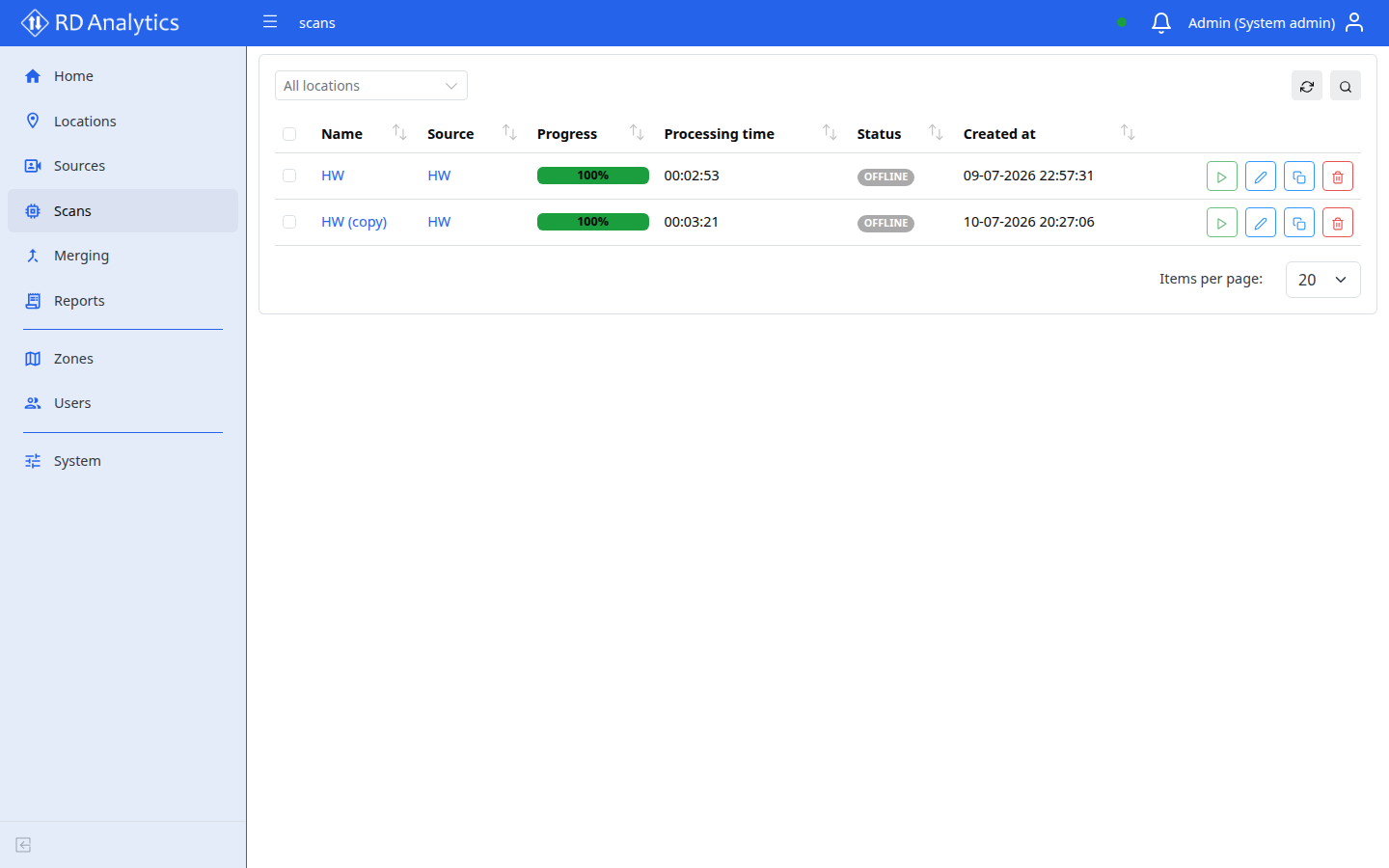
- Select Run/stop (play icon) on a row, or select multiple rows and Run selected.
Status progresses: QUEUED → PROCESSING → COMPLETED or FAILED.
Start/stop go through the application API to the engine (not the read-only Data API).
Stop processing
From configuration page (status PROCESSING):
- Select STOP PROCESSING.
From scan list (status QUEUED or PROCESSING):
- Select Run/stop (square icon) on a row, or Stop selected for multiple scans.
Stopping returns the scan to PENDING.
After completion
- Status COMPLETED — use View reports on the config page or build/open a report.
- Status FAILED — read error on list tooltip or Pipeline error alert; fix config and retry from PENDING.
Remote status changes
Yellow alert: Scan status changed remotely while you were editing. — select Reload latest.