Output settings
Save/disk icon — Output settings is the third panel on the scan configuration page (after AI processing settings and Draw settings). Use it to choose what the pipeline writes when the scan runs: system database, optional video recording, and integrations.
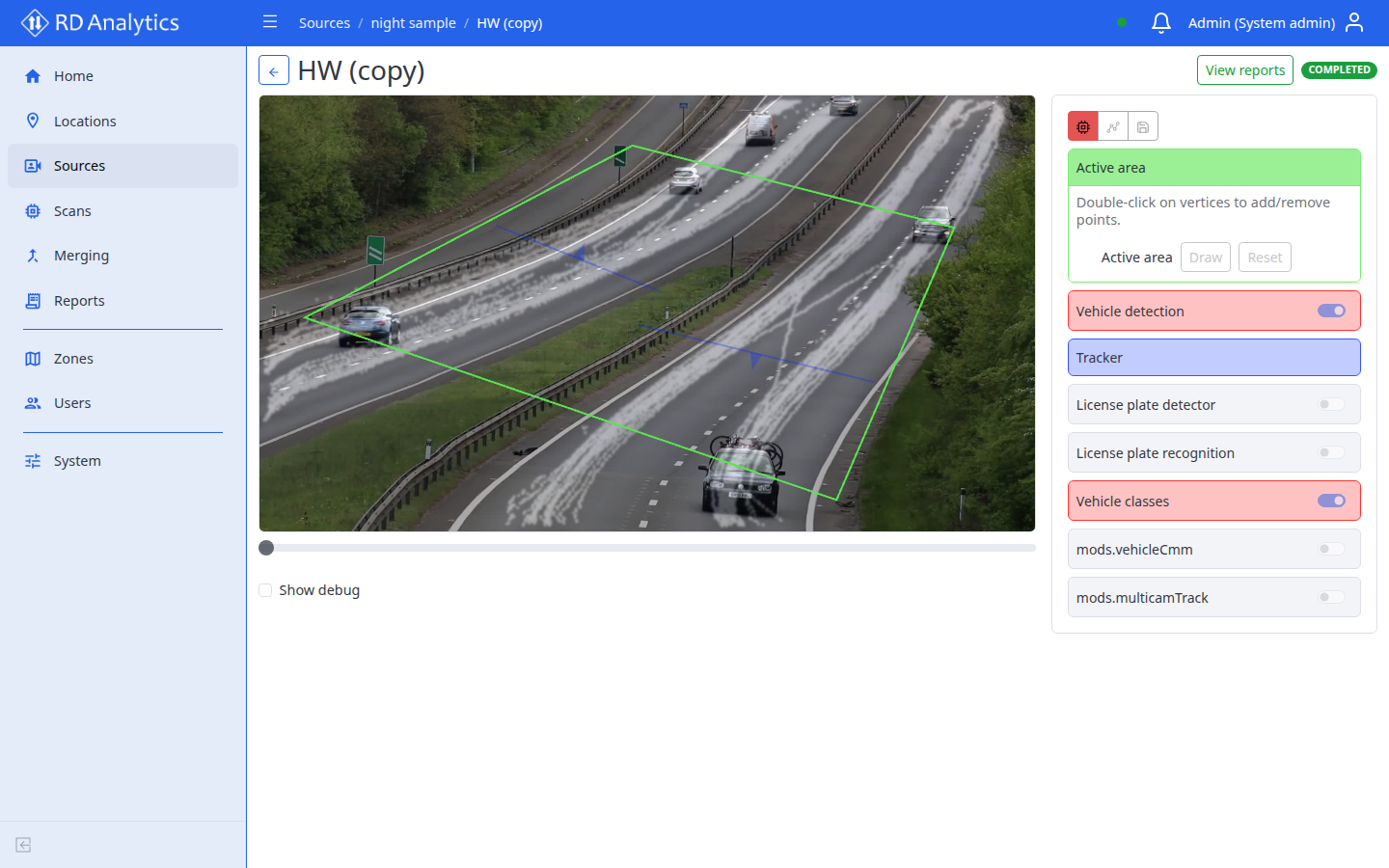
Requires: Scan status DRAFT to edit. Fields are schema-driven and depend on installed pipeline Modules and license features.
Open the panel
- Open the scan configuration workspace.
- In the right panel action row, select the save/disk icon (Output settings).
Geometry drawing is disabled while this panel is open.
How output slots work
| Element | Description |
|---|---|
| Slot card | One output module (for example SystemDB) |
| Enabled | Turn that output on or off |
| Module fields | Connection, recording, or filter options for the slot |
| Add | Add optional output slots that are not shown by default |
Empty slot message: No settings for this module.
Shipped output modules
| Module | Shown by default | Notes |
|---|---|---|
| SystemDB | Yes | Persists metrics, tracks, and events for reports. Recording mode: Metadata only, Object snapshot, or Full frame |
| Video Output | No (license: video_output) |
Records processed video with overlays. Playback speed and Resolution options |
| SQL DB | No (license: sql_db) |
Streams events to an external MySQL database |
| Webhook | No (license: webhook) |
Posts events as JSON to an HTTP(S) endpoint |
Optional modules appear after you select Add. Exact labels and fields follow the server schema. Full parameter reference: Pipeline modules.
Save
Save in the action row (DRAFT only) persists output settings together with AI processing and geometry.