Geometry editor
Use Draw settings on the scan configuration page to draw and edit geometry on the video frame — counting lines, active areas, speed / headway / queue sections, density and dwell zones, and more.
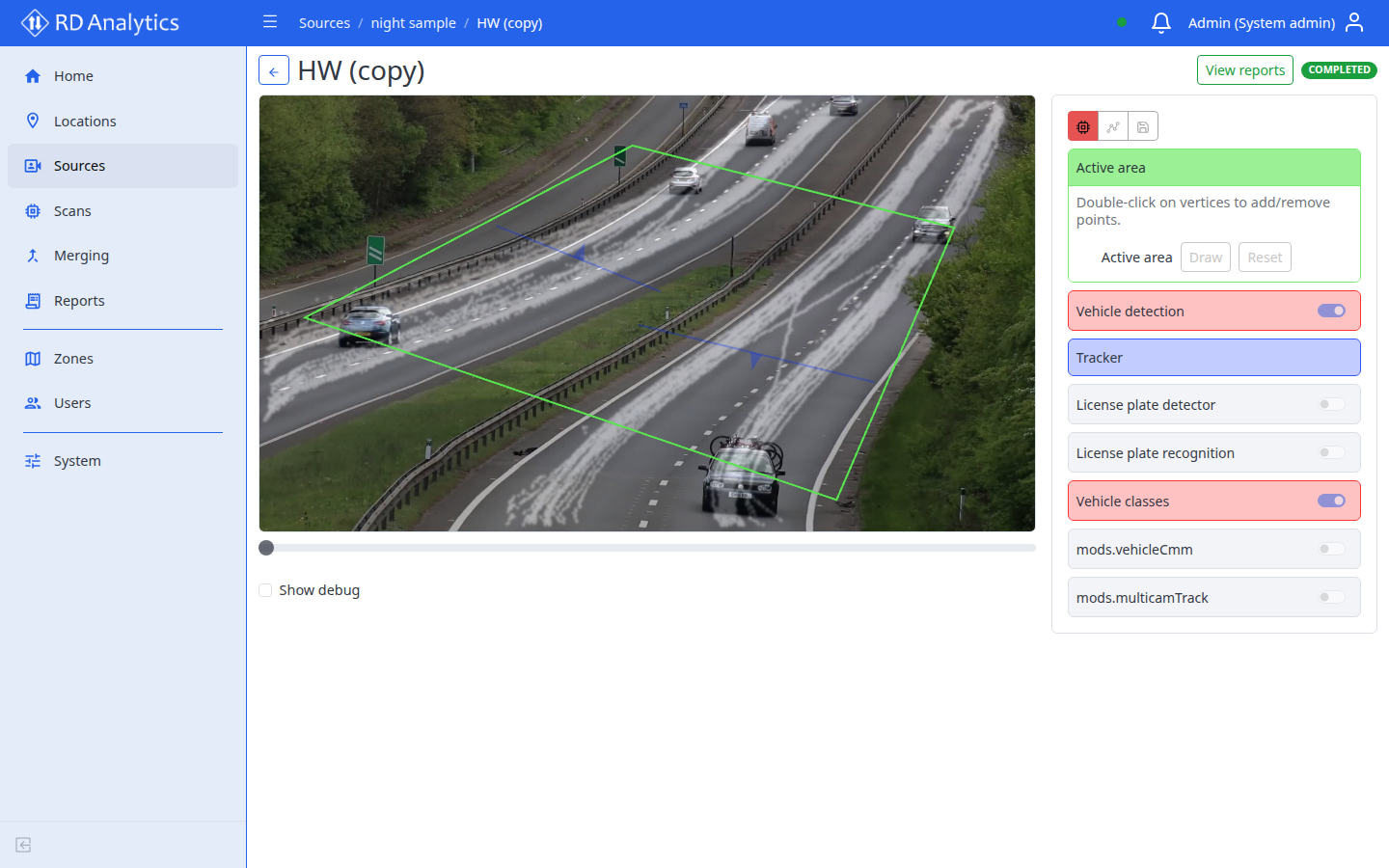
Requires: Scan status DRAFT.
Open draw mode
- Open the scan configuration workspace.
- In the right panel, select Draw settings (line-segments icon).
- The scene editor toolbar appears; the video canvas accepts drawing input.
Drawing basics
| Action | How |
|---|---|
| Draw geometry | Select geometry type in toolbar, click on video |
| Add/remove vertex | Double-click on vertices to add/remove points. |
| Reset geometry | Reset per geometry item |
| Focus canvas | Draw button on a geometry field |
Geometry types
Labels come from the installed pipeline schema. Shipped types include:
| Type | Typical use |
|---|---|
| Active area | Region of interest where detection and tracking run |
| Stabilizer | Region used as a feature lock mask for digital image stabilization |
| Blind area | Exclude detections inside a polygon |
| Counting line | Count objects crossing a line (with direction). Needed for typical report counts — draw at least one for a first demo |
| Speed measurement | Two reference lines plus distance to measure speed |
| Density area | Measure track density inside polygon areas |
| Zone dwell | Measure how long tracked objects stay inside polygon zones |
| Headway | Per-lane detector line for time headway; optional second line for spacing |
| Queue measurement | Start + stop lines for standing queue size, duration, and length |
Optional licensed modules may add more drawable geometry (for example Multi-camera tracking crossing lines). Exact types depend on modules installed on your server. Parameter details: Pipeline modules.
Minimal setup for reports
For a first scan that should show data in Reports:
- Draw the required Active area.
- Add at least one Counting line where objects will cross.
- Keep SystemDB enabled under Output settings (default).
- Save, set PENDING, and run processing.
Other geometry (density, speed, zone dwell, headway, queue) is optional and adds different Metrics domains in report tables and line charts — see Report widget types.
Tips
- Draw geometry while paused on a representative frame.
- Point the counting-line arrow in the travel direction you want to count.
- For Headway, draw one detector line per lane; add the Speed reference line only when you also need spacing.
- For Queue measurement, place Start line upstream and Stop line at the stop bar; use distinct Name values per lane.
- Use zoom/pan on the video to place points precisely.
- Save the scan configuration after geometry changes.
Related pages
- AI processing settings — link geometry fields from AI modules
- Output settings
- Pipeline modules
- Open and configure a scan
- Report widget types