Create and edit a location
Goal: Add or update a location record.
Time: ~2 minutes
Requires: Engineer or admin (Viewers cannot create locations).
Create a location
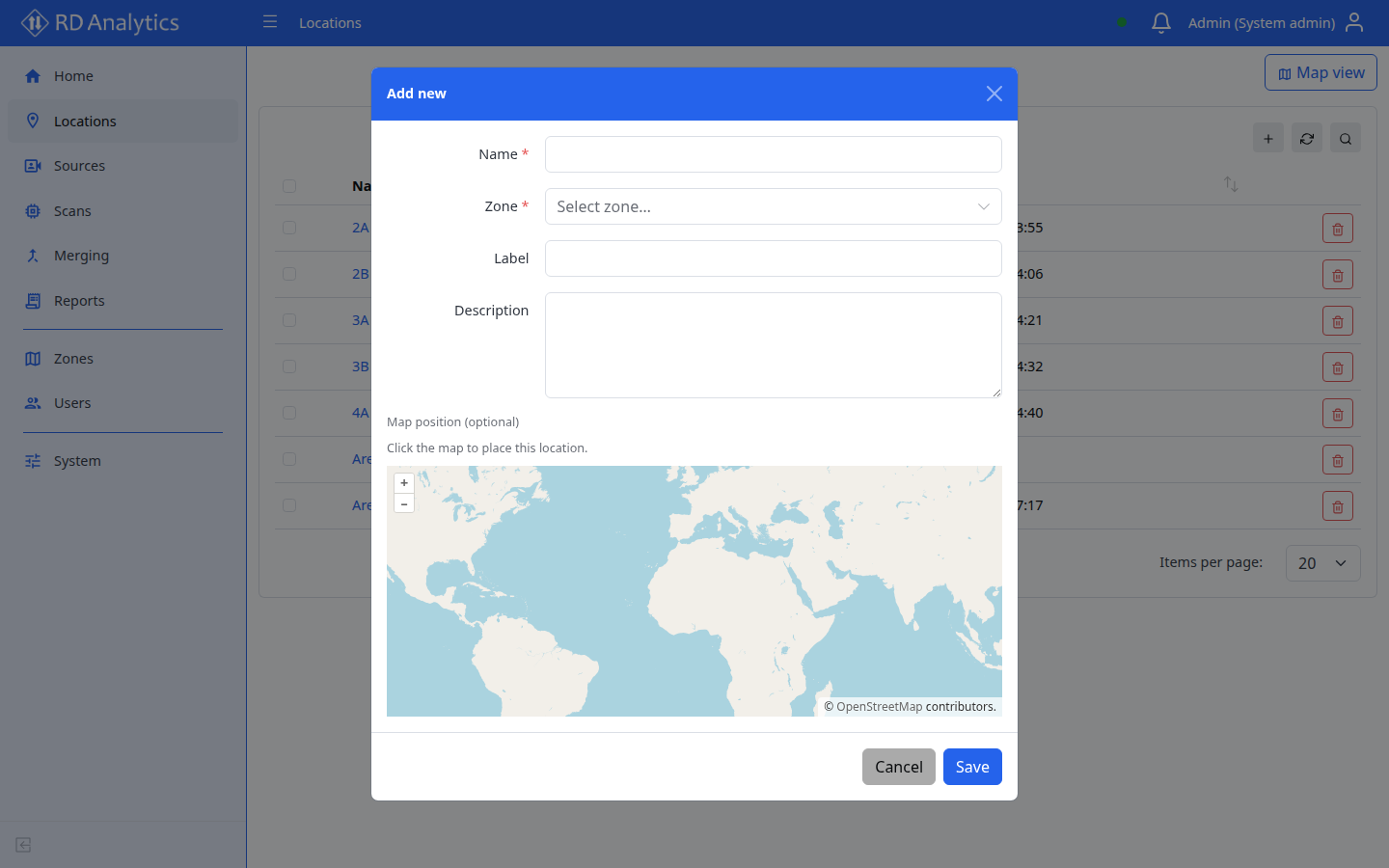
- Open Locations in the sidebar.
- Select Add new.
- Fill in the form:
| Field | Required | Notes |
|---|---|---|
| Name | Yes | Validation: Name is required. |
| Zone | Yes | Autocomplete — Select zone… |
| Label | No | Optional display tag |
| Description | No | Optional notes |
- Select Save.
Edit a location
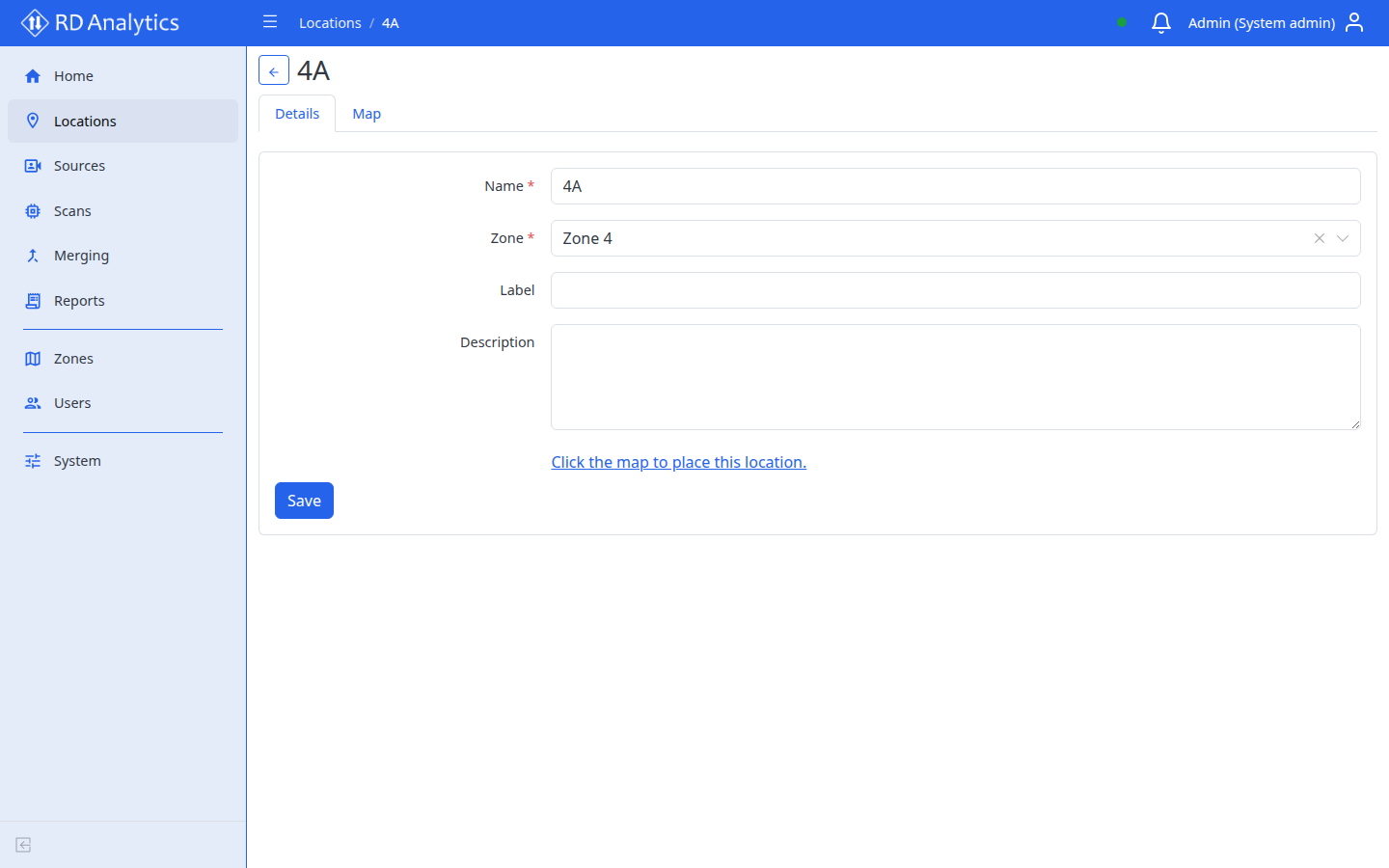
- Open Locations and click the location row (or open from a source’s Location link).
- Update fields on the details page.
- Select Save. Success toast: Saved successfully.
Delete a location
- On the list, select the row checkbox or use the row Delete action.
- Confirm Delete confirmation — Are you sure you want to delete {{itemName}}?
- For multiple rows, use Delete selected.
Warning
Deleting a location may affect sources that reference it. Review linked sources before deleting.
Verify
- The location appears in the Locations list with the correct Zone.
- The location appears in the All locations filter on Sources and Scans lists.
Troubleshooting
| Problem | What to do |
|---|---|
| Please select a zone. | Choose a zone from the autocomplete |
| Zone list empty | Ask an admin to create zones under Zones |
| No matches found. in zone picker | Reload the page; check network connection |